
LogoHome
Study with us

Stage 1 Enrolment guide

Start your Enrolment

Ready to join Hills Road? Complete Stage 1 of your enrolment online through your Applicaa account from 9 am, Thursday 20 August.

The form has seven steps. You can save your progress and return to it later, but you must submit it before 3 pm, Friday 21 August.

What you’ll need

Before you start, make sure you have:

  • Your statement of results
  • Certificates for any qualifications you have already completed previously. Important: Your name must be visible on all results documents, so we know they are yours.
  • A recent passport-style photograph
  • Check that you meet the entry requirements for any course changes you would like to make

Important: Your name must be visible on all results documents, so we know they are yours. 

Forgotten your password? Use the password reset option on the sign-in page.

Your Stage 1 Enrolment

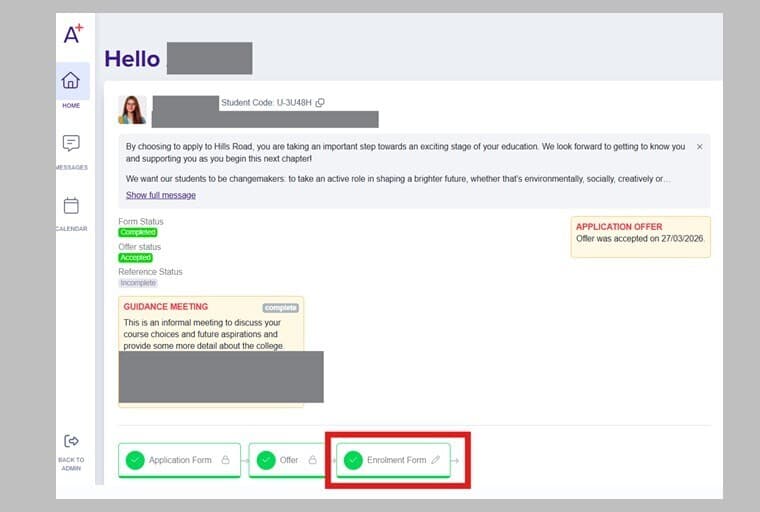
Enrolment: Applicaa welcome screen

1. Start your enrolment

Sign in to Applicaa and scroll down to find your enrolment form.

Open the form and read the introductory information. This explains what you need to complete and which documents you need to upload.

You’ll also be asked to check your personal details and indicate whether you would like to study three or four A levels.

Select Save and Next to continue.
Enrolment: Stage 1 Enrolment step 1

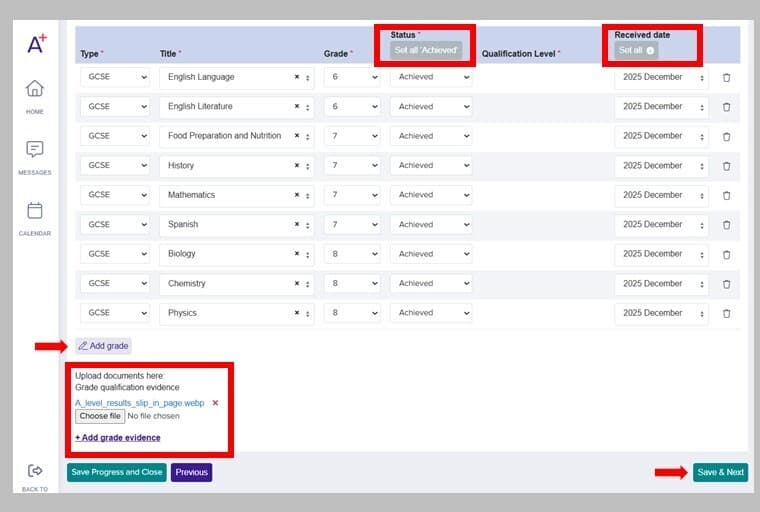
2. Add your grades and evidence

Check the qualifications listed in your account and update your results.

You’ll need to:

  • Change your grades from predicted to achieved
  • Correct any grades that have changed
  • Add the date of the award
  • Upload evidence of your results

Your name must be visible on your evidence. If you’re uploading screenshots from a results portal, include one screenshot showing your name and account, followed by screenshots showing your qualifications and grades. 

Grade evidence guidance >>

Select Save and Next when you have finished.

Step 3

3. Check your details and upload your photograph

Check that your known-as name and pronouns are correct.

Next, upload a photograph for your college card. Select the pencil icon beside the photograph placeholder to add your image.

Please use a passport-style photograph that:

  • Clearly shows your face
  • Includes only you
  • Has no filters
  • Does not show you wearing a hat or sunglasses

Photo guidance >>

Step 4

4. Choose your A level programme

Choose the programme you would like to study:

  • Three A levels
  • Four A levels, including Further Mathematics
  • Four A levels, excluding Further Mathematics

You will need an admissions score of 78 or above to study four A levels.

If you would like to take Further Mathematics, the college may consider an admissions score of 75–77 if places are still available.

If you were offered four A levels but would prefer to study three, simply select the three A level option.

Select Save and Next.

Step 5

5. Confirm your subjects

Your offered subjects will appear on screen.

If you’re happy with them, select No when asked whether you want to make a change.

If you would like to request different subjects:

  • Select Yes
  • Deselect any subject you want to drop
  • Select the new subject/s you want to study

Select Finish

Step 6

6. Tell us about your requested subject changes

If you request a subject change, tell us:

  • Which offered subject you want to change
  • Which subject you want to study instead
  • Why you want to make the change

If you add a fourth subject, include its name and explain why you want to take it.

Subject changes are requests and cannot be guaranteed. Approval will depend on your grades and the places available.

You do not need to arrange your subjects in preference order.

Select Save and Next.

Step 7

7. Tell us if you need advice

You can request an online advice meeting if you meet the entry requirements for your chosen subjects but are unsure whether they are right for you.

Request an online meeting only if you are fully qualified for all the subjects you want to study.

If you do not meet the entry requirements for one or more of your subjects, we will invite you to an on-site advice meeting or contact you.

Select Save and Next.

Step 8

Submit your enrolment

Your subject choices will be displayed one final time before you complete your enrolment, and you can edit them or submit your Enrolment.

Remember: Selecting Save does not complete your enrolment. You must click Submit your enrolment.

How do I know Stage 1 is complete?

You’ll know that you have successfully completed Stage 1 when:

  • Your enrolment form appears green in Applicaa; and
  • You receive a Stage 1 completion email from Hills Road.

The email will explain what happens next.

If you don’t receive an email, please sign back into Applicaa and check that you submitted the form (it will be green!)

Next steps

Once we have checked your qualification evidence, we will contact you no later than 11 am on Monday 24 August with one of the following:
  • If you meet the entry requirements for your chosen subjects:
    We will email you inviting you to complete Stage 2 Enrolment, the final stage of the enrolment process.
  • If you meet the entry requirements for your chosen subjects and have requested an Advice Meeting:
    We will email you with instructions on how to book your Advice Meeting and complete Stage 2 Enrolment.
  • If you do not meet the entry requirements for one or more of your chosen subjects:
    We will email you inviting you to an on-campus Advice Meeting or arrange a telephone call to discuss your enrolment options.

Do I need to contact Admissions?

Once we have completed our checks, we will contact you with the next steps. Please do not contact Admissions unless you have not heard from us by 11 am on Monday 24 August.

Please remember to check your spam, junk and promotional email folders for communication from the College. We will send all enrolment emails to the parent/carer email addresses you have provided.